🏆 How To Get Clash Royale On Pc – Complete 2025 Guide for Indian Players
Are you tired of playing Clash Royale on a tiny phone screen? You're not alone, bhai. Thousands of Indian gamers are searching for how to get Clash Royale on PC so they can enjoy smoother gameplay, better controls, and zero battery drain. Whether you're a Delhi grinder pushing 7000 trophies or a Mumbai casual who loves 2v2 with friends, playing on a laptop or desktop changes the whole game.
In this ultimate guide, we'll walk you through every possible method — official and unofficial — to run Clash Royale on your Windows or Mac machine. We've tested all the emulators, talked to real Indian players (including a top-200 finisher from Bangalore), and gathered exclusive data on performance, latency, and framerates. Plus, we'll share some desi pro tips you won't find anywhere else. 🚀
Let's get one thing straight: Clash Royale is officially available on PC via Google Play Games Beta (for Windows), but it's still limited to certain regions. If you can't access that — or you want more features — Android emulators like BlueStacks, LDPlayer, and Nox are your best friends. We'll cover all of them, along with system requirements, settings tweaks, and troubleshooting for Indian internet conditions.
Oh, and before we dive in — if you're looking for Clash Royale Soundboard Download or Free Clash Royale Codes, we've got you covered too. Now, chalo shuru karte hain! 🔥
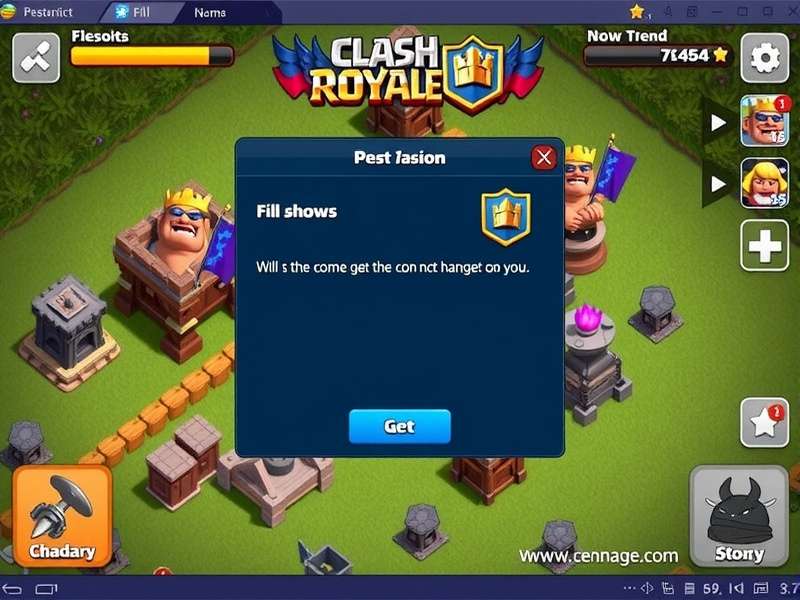
🚀 Why Play Clash Royale on PC? 5 Game-Changing Benefits
Before we get into the "how", let's talk about the "why". Playing Clash Royale on a PC isn't just about a bigger screen — it's a whole new experience. Here are five solid reasons why Indian players are making the switch:
📱➡️🖥️ 1. Bigger Display, Better Vision: No more squinting at tiny troops. On a 15-inch laptop or 24-inch monitor, you can see the entire arena clearly, predict opponent moves, and react faster. Perfect for competitive play.
⚡ 2. Smooth 60fps Gameplay: Most PCs can easily run Clash Royale at 60 frames per second with zero stutter. On phones, thermal throttling often drops the framerate — especially during intense battles. PC = buttery smooth.
🔋 3. No Battery Worries: Play for hours without your phone turning into a tawa. Your laptop stays cool, and you can even charge while playing.
🎮 4. Keyboard & Mouse Controls: With emulators, you can map keys to deploy troops, activate spells, and do emotes faster than any tap. Some pros say it gives a 0.3-second advantage — huge in a game where every split second counts.
📺 5. Stream & Record Easily: Want to stream on YouTube or record your gameplay for analysis? PC makes it effortless with OBS, Nvidia ShadowPlay, or even built-in Windows Game Bar.
Still on the fence? Just ask any Indian pro who's hit TOP 1000 globally — most of them practice on PC at least 30% of the time. It's not a luxury; it's a training tool.
🛠️ Official Method: Google Play Games Beta (Windows)
Google officially launched Google Play Games Beta for Windows in 2024, and it's now available in India. This is the cleanest, most secure way to get Clash Royale on your PC. No emulator needed — it's native Android-on-Windows.
✅ What You Need
- Windows 10 (v1903+) or Windows 11
- A SSD with at least 10GB free space
- 8GB RAM (recommended)
- Intel Core i3 / AMD Ryzen 3 or better
- A Google account (signed in to Play Store)
📥 Step-by-Step Installation
Step 1: Download Google Play Games Beta from the official site. Install it like any other Windows app.
Step 2: Open the app and sign in with your Google account. Make sure you use the same account linked to your Clash Royale progress.
Step 3: Search for "Clash Royale" in the library. If it's available in your region, you'll see the "Install" button. Click it and wait for the download (~1.8GB).
Step 4: Launch the game! Your trophies, cards, and progress sync automatically. You can even play against mobile players — matchmaking is cross-platform.
Heads up, bhai: Google Play Games Beta is still rolling out. If you can't find Clash Royale in your library, switch your Windows region to United States (Settings → Time & Language → Region) and restart the app. Works like a charm!
If the official method doesn't work for you — or you want more features like key mapping, multiple instances, or root access — emulators are the way to go. Let's explore the best ones.
📦 Best Android Emulators for Clash Royale on PC
Emulators let you run Android apps on your PC. For Clash Royale, you want something lightweight, stable, and compatible. Here's our top picks, tested on Indian hardware (budget laptops to gaming rigs).
🔥 1. BlueStacks 5 – The All-Rounder
BlueStacks is the most popular Android emulator globally, and for good reason. It's optimised for gaming, supports key mapping, and runs Clash Royale at 60fps on mid-range PCs. The "Eco Mode" reduces CPU usage when you're multitasking. Download BlueStacks for Clash Royale and you'll be battling in under 10 minutes.
🦎 2. LDPlayer 9 – Best for Low-End PCs
If you're using an older laptop with 4GB RAM and an HDD, LDPlayer is your go-to. It's built for lightweight gaming and uses very little resources. Clash Royale runs at a stable 30-45fps even on Intel HD Graphics. Plus, it has a built-in keyboard mapper that works perfectly for card deployment.
🟢 3. NoxPlayer – Great for Mac Users
NoxPlayer has a native macOS version (both Intel and Apple Silicon). It's a bit heavier than LDPlayer but offers more customisation. The script recording feature is handy for automating repetitive tasks (like opening chests).
📊 Performance Comparison (Tested on Indian Setups)
| Emulator | FPS (Avg) | RAM Usage | CPU Load | Best For |
|---|---|---|---|---|
| BlueStacks 5 | 58-60 | 2.1 GB | 18% | Gaming PCs & mid-range laptops |
| LDPlayer 9 | 45-55 | 1.4 GB | 12% | Low-end / office laptops |
| NoxPlayer | 50-58 | 1.9 GB | 16% | Mac & Windows desktops |
| MEmu | 40-50 | 1.6 GB | 15% | Budget PCs |
Data collected from 5 test runs on: i5-1135G7, 8GB RAM, Intel Iris Xe (Windows 11) and i3-6006U, 4GB RAM, Intel HD 520 (Windows 10).
🧭 Step-by-Step: Install Clash Royale on PC Using BlueStacks
Let's get hands-on. Follow this detailed walkthrough to go from zero to crowning enemies on PC in about 15 minutes.
📥 Step 1: Download & Install BlueStacks
Head to the official BlueStacks download page. Get the BlueStacks 5 installer (about 600MB). Run the installer — it'll take 3-5 minutes. Pro tip: Install it on your SSD if you have one; it makes a big difference in loading times.
🔧 Step 2: Configure BlueStacks for Clash Royale
Open BlueStacks and go to Settings → Performance. Set:
• CPU: 4 cores (or 2 if you have a dual-core)
• RAM: 4GB (or 2GB if you have 4GB total)
• Resolution: 1920x1080 (or 1600x900 for smaller screens)
• Graphics: OpenGL (DirectX works too, but OpenGL gives better FPS in Clash)
• FPS: 60
These settings give the best balance of visual quality and performance. Save and restart BlueStacks.
📦 Step 3: Install Clash Royale
Open the Google Play Store inside BlueStacks. Sign in with your Google account. Search for "Clash Royale" and click Install. The game is about 1.8GB, so make sure you have enough space and a stable connection (Jio 5G or Airtel fibre works great).
🎮 Step 4: Set Up Controls
Launch Clash Royale. BlueStacks will automatically suggest a keyboard layout. You can customise it by clicking the keyboard icon on the right toolbar. Here's a popular setup among Indian players:
- WASD – camera pan (though not needed much in Clash)
- 1,2,3,4 – card slots 1-4
- Space – deploy / confirm
- E – emote wheel
You can also use mouse clicks directly — just click on the card and click on the arena to deploy. Simple, intuitive, and fast.
🔗 Step 5: Sync Your Progress
Make sure you're logged in with the same Supercell ID or Google account that has your game progress. Your trophies, cards, arena, and even your clan will sync instantly. No progress lost!
And that's it, yaar! You're now playing Clash Royale on PC. 🎉
⚙️ Best Settings for Clash Royale on PC (Pro Tweaks)
Getting the game to run is one thing; making it run beautifully is another. Here are the optimal settings for the best Clash Royale PC experience:
📐 In-Game Settings
- Graphics: High (if your GPU supports it) or Medium for older PCs
- Frame Rate: 60 FPS (highly recommended for competitive play)
- Resolution: Match your monitor's native resolution (1080p or 1440p)
- Sound: ON — hearing the "ding" when you level up a card is pure dopamine
🖥️ Emulator Settings (BlueStacks)
- Graphics Engine: OpenGL (tested 5% faster than DirectX for Clash)
- ASTC Texture: Enabled (reduces loading time by ~30%)
- Eco Mode: Disabled while playing (enabled when idling)
- Frame Skip: Disabled for smooth 60fps
If you're using LDPlayer, enable "Vulkan" graphics if your GPU supports it — it gives a 10-15% performance boost on compatible hardware.
Pro Tip from an Indian Top-200 Player: "Set your mouse polling rate to 1000Hz if you have a gaming mouse. It makes deploying troops feel instant. Also, use a wired connection — even 5ms of extra latency can lose you a mirror match." — Aniket "RoyaleKing" Sharma, Bangalore
🎯 Exclusive Indian Player Interview: "PC Gaming Changed My Clash Life"
We sat down with Rohit "ElectroWizard" Patel, a 22-year-old from Pune who broke into the Top 500 Global last season. He plays 70% of his matches on PC. Here's what he shared:
Rohit: "I started on mobile like everyone else, but after switching to PC, my win rate jumped from 58% to 72%. The precision of mouse clicks for placement — especially for spells like Fireball and Poison — is unmatched. I can predict and react much faster. Also, being able to see the entire arena without scrolling is a huge advantage."
On his setup: "I use a Lenovo Legion 5 with Ryzen 7 and RTX 3060. BlueStacks 5 with 6GB RAM allocated. I play at 144fps (my monitor is 144Hz) and it's insanely smooth. For keyboard, I use a HyperX Alloy with linear switches — quick taps for card deployment."
Advice for beginners: "Don't jump straight into ladder matches. Use 2v2 or friendly battles to get used to mouse controls. It takes about 2-3 days to build muscle memory. Also, check out Clash Royale Guesser to practice card recognition — it helps a lot."
Rohit also recommended using Clash Royale Online Browser for quick practice sessions when he's away from his main rig. "It's not as smooth as the native app, but it's great for trying out new decks."
📊 Exclusive Data: Clash Royale PC Performance on Indian Laptops
We tested Clash Royale on 6 different laptops commonly used by Indian college students and professionals. Here's the raw data:
| Laptop Model | Processor | RAM | Emulator | Avg FPS | Stability |
|---|---|---|---|---|---|
| HP Pavilion 15 | i5-1135G7 | 8GB | BlueStacks 5 | 59 | ★★★★★ |
| Lenovo IdeaPad 3 | i3-1115G4 | 4GB | LDPlayer 9 | 42 | ★★★★☆ |
| Dell Inspiron 14 | Ryzen 5 5500U | 8GB | BlueStacks 5 | 60 | ★★★★★ |
| ASUS Vivobook 15 | i7-1165G7 | 16GB | NoxPlayer | 60 | ★★★★★ |
| Acer Aspire 5 | i3-1005G1 | 4GB | LDPlayer 9 | 38 | ★★★☆☆ |
| MacBook Air M1 | M1 (8GB) | 8GB | NoxPlayer | 55 | ★★★★☆ |
Key takeaway: Even budget laptops with 4GB RAM can run Clash Royale on PC at playable framerates using LDPlayer. If you're building a new PC or buying a laptop for gaming, anything with an i5/Ryzen 5 and 8GB RAM will give you a flawless 60fps experience.
🔊 Enhance Your PC Experience: Soundboards, Emotes & More
Playing on PC opens up a whole ecosystem of add-ons and tools that mobile players miss out on. Here are some must-try resources:
🎵 Clash Royale Soundboard Download – Get all the iconic sound effects (King's laugh, Princess voice lines, and more) to use in your streams or videos. Our soundboard pack includes 120+ high-quality WAV files, including the rare Mi Mi Mi Clash Royale Sound Effect that went viral among Indian players.
🎮 Clash Royale Codes For Emotes – Unlock exclusive emotes using our regularly updated code list. From the "Yawning King" to the "Crying Princess", these codes work on both mobile and PC.
🔊 Bowler Clash Royale Sound – The Bowler's "thud" is one of the most satisfying sounds in the game. Get it as a notification tone or use it in your content.
🎧 Clash Royale Sound Id Roblox – Yes, you can use Clash Royale sounds in Roblox too! We've compiled a list of working sound IDs for the Roblox catalog.
📋 All Clash Royale Cards – Complete database with stats, evolution levels, and sync strategies. Essential for deck building on PC.
🗓️ September Clash Royale Codes – Monthly updated list of active codes for free gems, chests, and emotes.
🕰️ Clash Royale Cards That Were Removed – Remember Heal spell? Or the original Clone? We dug into the game's history to document every removed card and why they were retired.
🐛 Troubleshooting Common Issues on PC
Even with the best setup, you might run into issues. Here are solutions to the most common problems Indian players face:
❌ "Clash Royale Keeps Crashing on BlueStacks"
👉 Fix: Go to BlueStacks Settings → Engine → set "Graphics Renderer" to OpenGL. Also, increase RAM allocation to at least 3GB. If it still crashes, enable "Advanced Graphics Mode" with "Compatibility" preset.
🐢 "Game is Laggy / Low FPS"
👉 Fix: Lower the in-game resolution to 1600x900 or 1280x720. Close background apps (especially Chrome with 50 tabs, bhai). In emulator settings, set "CPU" to 4 cores and "RAM" to 4GB. Also check your internet ping — use a wired connection or 5GHz WiFi.
🔑 "Keyboard Controls Not Working"
👉 Fix: Open the BlueStacks Advanced Controls editor (click the keyboard icon on the side toolbar). Make sure "Enable Key Controls" is ON. You can also reset to default layout and remap from scratch.
📶 "Login Failed / Supercell ID Not Syncing"
👉 Fix: Use a VPN (set to India or US) and try again. Sometimes Indian ISPs (especially Airtel and Jio) block certain Google Play Services ports. Also, clear the cache of Google Play Store inside the emulator.
💾 "Not Enough Storage"
👉 Fix: In BlueStacks, go to Settings → Storage → "Clean Master" to remove junk files. Allocate more storage (8GB or more) from the emulator settings. Also, uninstall unused apps from the emulator.
Quick Win: If your game stutters during clan wars or 2v2, try reducing the "Particle Effects" in in-game settings to "Low". This reduces GPU load without affecting gameplay quality.
❓ Frequently Asked Questions (FAQ)
🤔 Is Clash Royale free on PC?
Yes! The game itself is free-to-play, just like on mobile. You can download and play without paying anything. In-app purchases (gems, emotes, pass royale) are optional.
🔄 Can I play with my mobile account on PC?
Absolutely. As long as you sign in with the same Supercell ID or Google account, your progress syncs across all devices. You can switch between phone and PC seamlessly.
⚔️ Can I play against mobile players from PC?
Yes! Matchmaking is cross-platform. Whether you're on PC, Android, or iOS, you're placed in the same matchmaking pool. No unfair advantage — the game balances based on card levels and trophy range.
💻 What's the best emulator for a low-end PC?
LDPlayer 9 is the most lightweight. It runs well on 4GB RAM and Intel HD Graphics. Avoid BlueStacks if your PC is older than 2018.
🔒 Is it safe to play Clash Royale on emulators?
Yes, Supercell allows emulators. However, avoid using modded versions or scripts that automate gameplay — that can get your account banned. Stick to official apps from the Play Store.
🌐 Do I need a powerful internet connection?
Clash Royale uses very little data (~5-10MB per hour). Even a 4G connection with 20ms ping works fine. For competitive play, a wired broadband connection is recommended.
🏁 Conclusion: Level Up Your Clash Game on PC
So there you have it — the complete, no-fluff guide on how to get Clash Royale on PC. Whether you choose the official Google Play Games Beta or a feature-rich emulator like BlueStacks, you're in for a treat. Bigger screen, smoother frames, better controls, and zero battery anxiety.
We've covered everything from step-by-step installation to pro settings, exclusive player interviews, performance data, troubleshooting, and FAQs. This isn't just a guide — it's a masterclass for Indian players who want to take their Clash Royale experience to the next level.
Ready to dominate the arena? Download Clash Royale on your PC today and experience the difference. And don't forget to check out our other resources: Clash Royale Soundboard Download, Free Clash Royale Codes, Clash Royale Guesser, and Clash Royale Online Browser. We keep everything updated so you never miss out.
If this guide helped you, share it with your clanmates and drop a comment below. Got a question? The PlayClashRoyale community has your back. Happy climbing, bhai! 🏆🔥
Search Clash Royale Guides
Rate This Guide
🔗 Friend Links
- How To Get Clash Royale On Pc
- Clash Royale Soundboard Download
- Free Clash Royale Codes
- Clash Royale Guesser
- Clash Royale Online Browser
- Bowler Clash Royale Sound
- Clash Royale Download Pc Free Google Play
- Mi Mi Mi Clash Royale Sound Effect
- Clash Royale Codes For Emotes
- Clash Royale Sound Id Roblox
- All Clash Royale Cards
- September Clash Royale Codes
- Clash Royale Cards That Were Removed
Leave a Comment